
[User Guide] Anderic RRU401 4-Device Universal Remote Control with Macro, Backlighting, and Learning - RRU401.6 / RRU401.7
This article applies to the Anderic RRU401.6 & RRU401.7 Universal remote control. If you have a previous model, please refer to the help article located here.
Index
- Code List
- Notes & Incompatible Devices
- Installing the batteries
- Programming
- Code Display
- Multi-mode Combine Power
- Device Mode Lock
- Punch-though
- Channel keys
- Volume keys
- Media keys
- Roku keys
- All keys (converts the remote to a 1-device)
- Specific keys
- Learning
- Macro
- Backlight Settings
- Resetting the remote
- Troubleshooting
Code List
The complete code list is located here.
Known Incompatible Devices
The RRU401 is not compatible with the following devices:
- Dish Hopper 3 (All other Dish boxes are supported in IR mode)
- Roku Streaming Stick / Roku TVs with no IR receiver
- Amazon Fire TV Stick (lacks IR support)
DirecTV Programming Note
When programming the RRU401 to a DirecTV box, the box must be set to IR mode.
To change this setting:
- Using your DirecTV remote, press MENU
- Navigate to Settings & Help > Settings > Remote Control
- Locate and select the option to switch from RF to IR mode
Note about Roku Devices
Roku TVs and Roku Players cannot use the number keys to access specific channels. Therefore, the RRU401 will not function to control the number keys on your Roku TV or Roku Player, regardless of the code. To view the available keys for your Roku device, please refer to the code key mapping tool.
Installing the Batteries
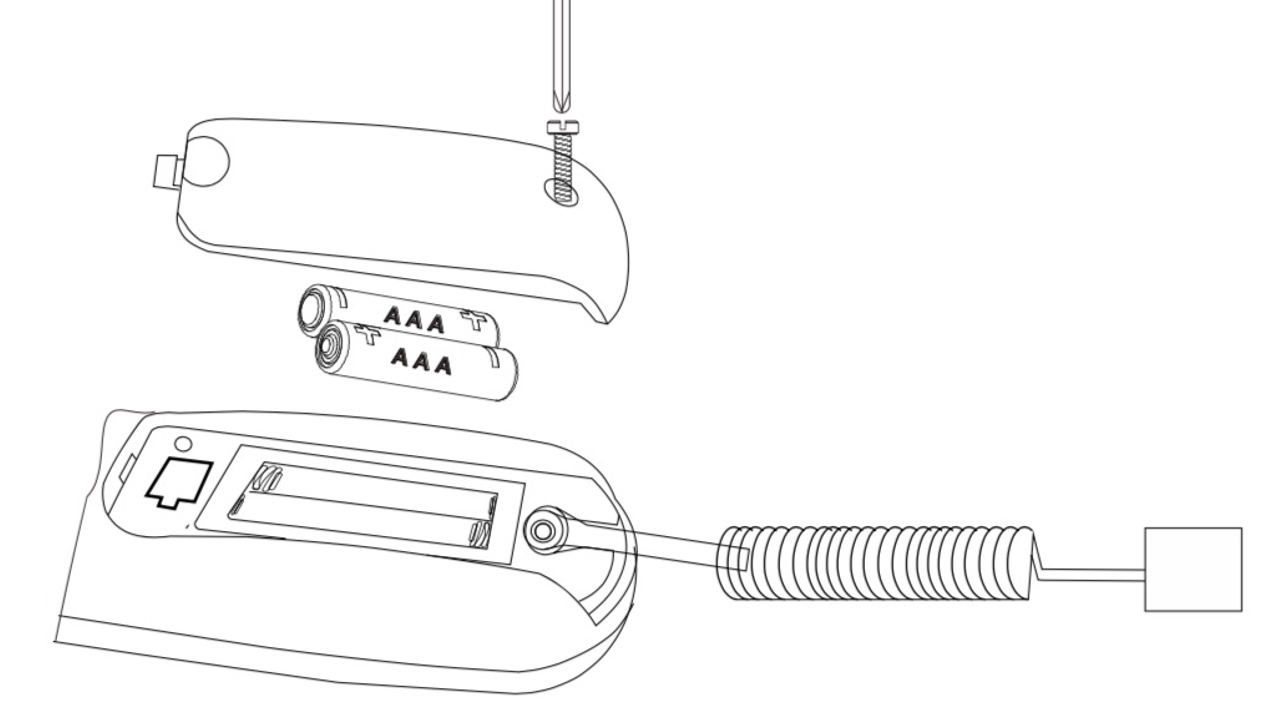
To install batteries, please remove the battery cover by first removing the screw with a Phillips-head screwdriver, then sliding the door down with downward pressure towards the bottom of the remote. After removing the battery door, please insert two AAA batteries with matching polarities. Then, replace the battery door and screw. Refer to the diagram below for guidance on installing the batteries.
Programming – Code Input Method
This method enables you to easily program the remote using the corresponding brand code from the attached code list for your unit.
-
Turn on the device you want to control.
Find the corresponding brand code in the attached code list and record it.
Press and hold the mode key (e.g., TV) you wish to program for about 3 seconds until the mode light remains on, then release the mode key.
Input the 4-digit code from the codebook.
- If valid, the Mode key light will turn off immediately.
- If invalid, the Mode key will blink three times rapidly and then turn off. Please try inputting the code again.
- Check whether most of the keys on your device work to control it. If not, please try another code under the same brand and repeat all steps. You may also try “Auto code search method” or “One button search method” below.
Note: If no button is pressed for 20 seconds during programming mode, the remote will exit programming mode.
Programming - Auto Code Search Method
This method allows you to program your device by scanning all available codes.
- Turn on the device you want to control.
- Press and hold the mode key (e.g., TV) you wish to program for about 3 seconds until the mode light remains on, then release the mode key.
- Press the [CH+] or the [CH-] key and release to scan forward or backward.
- When the device powers off (or video starts playing), press the [POWER] key to save and exit
Note: During searching, you can press the [CH+] or [CH-] key to change the scanning direction. If you press any other key, the search mode will exit.
Programming - One-Button Search Method
This method allows programming by pressing only a single key. Only works for TV and Cable/STB codes.
- Power on the device you want to control.
- Press & release the mode key you wish to program (e.g., TV).
- Find your brand number in the list below, then press and hold the corresponding number key until the unit powers off. Once the unit powers off, release the key.
- Check the other keys to see if most of them work correctly. If not, repeat steps 1-4
Note: while holding the number key, after 3 seconds the mode light goes out, it will enter the searching mode for that brand; the mode light will now be flashing about once every second

Code Display
Use this method to display the programmed code.
- Press and release the mode key for which you would like to know the code (e.g., TV).
- Press the “[MENU]” and “[1]” keys, and the Mode key flash times indicate the first digit of the code.
- Press the “[MENU]” and “[2]” keys, and the mode key flash times indicate the second digit of the code.
- Press the “[MENU]” and “[3]” keys, and the mode key flash times indicate the third digit of the code.
- Press the “[MENU]” and “[4]” keys, and the mode key flash times indicate the fourth digit of the code.
NOTE: If the current digit is 0, the mode key will not flash.
Multi-mode Combine Power
When enabled, this feature lets you power multiple devices on or off with a single press of the POWER button.
Enable - Multi-mode Combine Power
- Press and hold any mode key (e.g., TV) for about 3 seconds until the key lights and stays on, then release it.
- Enter code "9 9 8 0". The mode key remains lit.
- Press all mode keys (i.e., TV, STB, DVD) you wish to enable multi-mode combine power.
- Press the [POWER] key to save and exit.
Disable - Multi-mode Combine
- Press and hold any mode key (e.g., TV) for about 3 seconds until the mode key lights and remains on, then release the mode key.
- Enter code "9 9 8 0". The mode key remains lit.
- Press the [POWER] key to save and exit. The Mode key blinks twice and then turns off.
Device mode lock
When enabled, this feature allows you to lock a device mode so that it cannot be reprogrammed. It can serve as a safety feature to prevent accidental programming. If enabled, the device lock must be disabled first before the mode can be programmed again.
- Press and hold the mode key (e.g., STB) you wish to enable/disable device mode lock for 3 seconds until the mode key lights and remains on, then release the mode key.
- Input code “9 9 8 1”.
- If enabled, the mode light goes out directly
- If disabled, the mode light blinks twice
Channel Keys Punch-through
When enabled, all channel keys (0-9, [-], [RECALL], [CC], [SAP], [CH +], and [CH -]) will always send the mode code, regardless of the remote's current mode.
Example: After programming channel punch-through to STB mode, if the remote is currently in TV mode and you press a channel key, the remote will send the STB code instead of the TV code.
- Press and hold the mode key (e.g., STB) you wish to enable/disable channel punch-through for about 3 seconds until the mode key lights and remains on, then release the mode key.
- Input code “9 9 8 2”.
- If enabled, the mode light turns off immediately.
- If disabled, the mode light blinks twice.
Volume Keys Punch-through
When enabled, all volume keys ([MUTE], [VOL+], and [VOL-]) will always send the mode code, regardless of the mode the remote is currently in.
- Press and hold the mode key (e.g., TV) you wish to enable or disable volume punch-through for about 3 seconds, until the mode key lights up and remains on; then release the mode key.
- Input code "9 9 8 3".
- If enabled, the mode light turns off immediately.
- If disabled, the mode light blinks twice.
Media Keys Punch-through
When enabled, all media keys: [STOP], [RECORD], [<<], [|<<], [PAUSE], [>>|], [>>], [PLAY] will always send the mode code, regardless of the mode the remote is currently in.
- Press and hold the mode key (e.g., DVD) you wish to enable or disable media punch-through for 3 seconds, until the mode key lights up and remains on; then release the mode key.
- Input code “9 9 8 4”.
- If enabled, the mode light turns off immediately.
- If disabled, the mode light blinks twice.
Roku® Keys Punch-through (with the directional pad)
When enabled, all Roku related keys: [EXIT] ( ), [<<], [PLAY], [PAUSE], [>>], [INFO](*), [HOME], [REPLAY], [NETFLIX], [UP], [DOWN], [LEFT], [RIGHT] & [OK] will always send the mode code, regardless of the mode the remote is currently in.
- Press and hold the mode key (e.g., STB) you wish to enable/disable Roku punch-through for, for about 3 seconds until the mode key lights and remains on, then release the mode key.
- Input code "9 9 7 0".
- If enabled, the mode light turns off immediately.
- If disabled, the mode light blinks twice.
Roku® Keys Punch-through (without the directional pad)
When enabled, all Roku-related keys: [EXIT] ( ), [<<], [PLAY],[PAUSE], >>], [INFO](*), [HOME], [REPLAY], [NETFLIX] will always send the mode code, regardless of the mode the remote is currently in.
- Press and hold the mode key (e.g., TV) you wish to enable or disable Roku punch-through for about 3 seconds, until the mode key lights up and remains on; then release the mode key.
- Input code "9 9 7 1".
- If enabled, the mode light turns off immediately.
- If disabled, the mode light blinks twice.
All-Key Punch-through
When enabled, all keys will always send the code for the assigned mode, regardless of the remote's current mode. Note: All-key punch-through has the lowest priority among all punch-through types. You may enable other punch-through modes to work alongside it, and they will have higher priority.
- Press and hold the mode key (e.g., TV) you wish to enable or disable all-key punch-through for about 3 seconds, until the mode key lights up and remains on; then release the mode key.
- Input code "9 9 7 3".
- If enabled, the mode light goes out directly.
- If disabled, the mode light blinks twice.
Individual Key Punch-through
Individual Key Punch-through allows for individually assigning keys to “punch-through” to your chosen mode. After enabling punch-through to a given key, the key will always send the code to the assigned device, regardless of the remote's current mode. Note: Individual Key Punch-through has the highest priority among all punch-through types.
Enable - Individual Key Punch-through
- Press and hold any mode key (e.g., TV) for approximately 3 seconds until the mode key lights up and remains on, then release the key.
- Input code “9 8”,
- Press the corresponding key you wish to enable punch-through for,
- Press the mode key you want to assign (e.g., TV, STB, AUX); the mode light will go out immediately.
Note: To re-assign a key to a different mode, repeat steps 1-4.
Disable - Individual Key Punch-through
- Press and hold any mode key (e.g., TV) for about 3 seconds until the mode key lights and remains on, then release the key.
- Input code “9 0 0”,
- Press the key you want to disable the punch-through for; the mode light blinks twice to confirm.
Learning Function
This method allows you to program individual keys using your existing remote's codes.
- Press and hold the mode key (e.g., TV) you wish to program for about 3 seconds until the mode light remains on, then release the mode key.
- Press and release the [MENU] key; the mode key blinks slowly, and the remote is now in learning mode.
- Press and release the key you want to learn; the mode light now remains on.
- Align both remotes by pointing them at each other, keeping them approximately 2 inches apart, ensuring the IR LEDs are directly aligned. 5
- . Press and hold the corresponding key on the target remote control until the mode light blinks three times and then flashes slowly. This means the code was learned successfully; continue to step 6. If unsuccessful, the mode light flashes twice quickly and exits learning mode. This may indicate that there is insufficient memory. Please delete some learned keys. Please start over from step 1.
- Repeat steps 3-5 to learn all the keys you need while the model light blinks slowly, then press the mode key (e.g., TV) to save and exit.
Delete the individual learned key.
- Press and hold the mode key (e.g., TV) you wish to program for about 3 seconds until the mode light remains on, then release the mode key.
- Press and release the [MENU] key; the mode key blinks slowly, and the remote is now in learning mode.
- Press and hold the key from which you want to delete the learned code.
- If successful, the mode light blinks three times, the remote saves, and exits.
- If unsuccessful, the mode light flashes twice and exits.
- Repeat steps 1-3 for the remaining keys for which you would like to delete the learned programming.
Delete all learned keys from a single device.
- Press and hold the mode key (e.g., TV) you wish to program for about 3 seconds until the mode light remains on, then release the mode key.
- Press and release the [MENU] key; the mode key blinks slowly, and the remote is now in learning mode.
- Press and hold the mode key you want to delete all learned keys from (e.g., TV) until the mode light blinks 3 times, then release.
Delete all learned keys from all devices.
- Press and hold the mode key (e.g., TV) you wish to program for about 3 seconds until the mode light remains on, then release the mode key.
- Input code "9 9 8 8", mode light blinks two times slowly to confirm and exits.
Macro function
Macros enable multiple keys to be transmitted with the press of a single dedicated key. For example, with a single press of the assigned key, the remote can power on the TV, change input, increase volume, Power on the cable box, and select input channel 530.
Setting a Macro Key while in a specific Mode only (Fixed Device)
What is a Fixed Device? This setting allows you to assign a macro key that is active only while in the designated mode. For example, if the “FAV” key is transferred to the “TV” mode to send macros. “FAV” key will operate as usual if the remote is in any other mode, such as STB, DVD, or AUDIO. The “FAV” key will send the assigned macro only if the remote is in “TV” mode when the key is pressed.
- Press and hold the mode key (e.g., TV) you wish to program for about 3 seconds until the mode light remains on, then release the mode key.
- Input code "9 9 5",
- Press the key to assign a macro function to the LED, which flashes once and remains on.
- Press the mode key (e.g., TV), then press the keys in the order you want the remote to transmit them. If you want to change modes during the sequence, press the corresponding mode key (e.g., DVD) in sequence and then continue pressing the remaining keys you wish to use.
- When complete, Press and hold any Mode key (e.g., TV) for about 3 seconds to save and exit.
Setting a Macro Key that works while in any mode (Non-fixed device)
What is a non-fixed device? This setting allows the macro key function to be sent consistently, regardless of the remote's mode (i.e., TV, DVD, STB, AUDIO).
1. Press and hold any mode key (e.g., TV) for about 3 seconds until the mode light remains on, then release the mode key.
2. Input code "9 9 6",
3. Press the key to assign a macro function to, the LED flashes once and remains on;
4. Press the mode key (e.g., TV), then press the keys in the order you want the remote to transmit them. If you want to change modes during the sequence, press the corresponding mode key (e.g., DVD), then continue pressing the remaining keys you wish.
5. When complete, Press and hold any Mode key (e.g., TV) for about 3 seconds to save and exit.
Example: Assigning “FAV” key to Power on TV, Change input, Increase volume by 1, Power on Cable Box, Input channel 530. Press the following keys in sequence: Hold [TV] for 3 seconds, [9], [9], [6], [FAV], [TV], [POWER], [INPUT], [VOL +], [CBL], [POWER], [5], [3], [0] & finally, press and hold [TV] for 3 seconds to save. Delete programmed macro key: Skip step 4 from the above procedure.
Macro functionality notes:
This remote supports up to 5 keys with macro functionality.
This remote can program up to 15 steps per macro.
If programming a macro over a previously assigned macro, it will replace it.
Backlight Adjustments
Toggle backlighting on/off
- Press and hold any mode key (e.g., TV) for about 3 seconds until the mode light remains on, then release the mode key.
- Input code "9 9 8 5"
Toggle backlighting length of time: 3 - 10 seconds
- Press and hold any mode key (e.g., TV) for about 3 seconds until the mode light remains on, then release the mode key.
- Input code "9 9 8 6".
Toggle backlighting brightness: 100/75/50/25%
- Press and hold any mode key (e.g., TV) for about 3 seconds until the mode light remains on, then release the mode key.
- Input code "9 9 8 7".
Reset to Factory Default Status
- Press and hold any mode key (e.g., TV) for about 3 seconds until the mode light remains on, then release the mode key.
- Enter code "9 9 9 9"; all mode lights will illuminate and remain lit for approximately 3 seconds, then turn off to confirm a successful reset.
Troubleshooting
- The Mode keys blink when buttons on the remote are pressed, and the remote is unresponsive.
- If the batteries are weak, when pressing any keys on the remote, the mode keys will all blink simultaneously to indicate the batteries need changing.
FOR ADDITIONAL HELP AND SUPPORT, VISIT ANDERIC.COM. ANDERIC® IS A REGISTERED TRADEMARK OF DAN’S ELECTRONICS ETC. INCORPORATED. ALL RIGHTS RESERVED.