.png)
ERF6B80HL | Hisense Remote Control User Manual
Note: This article applies to the Anderic / Hisense ERF6B80HL Google Voice remote (also marked RF585A-T1-03). It is a Bluetooth + IR voice remote for select Hisense Google TV / Android TV models in the A7, U6, and U8 families. It is not for Roku TV or Fire TV editions.
Google Voice TV remote, front view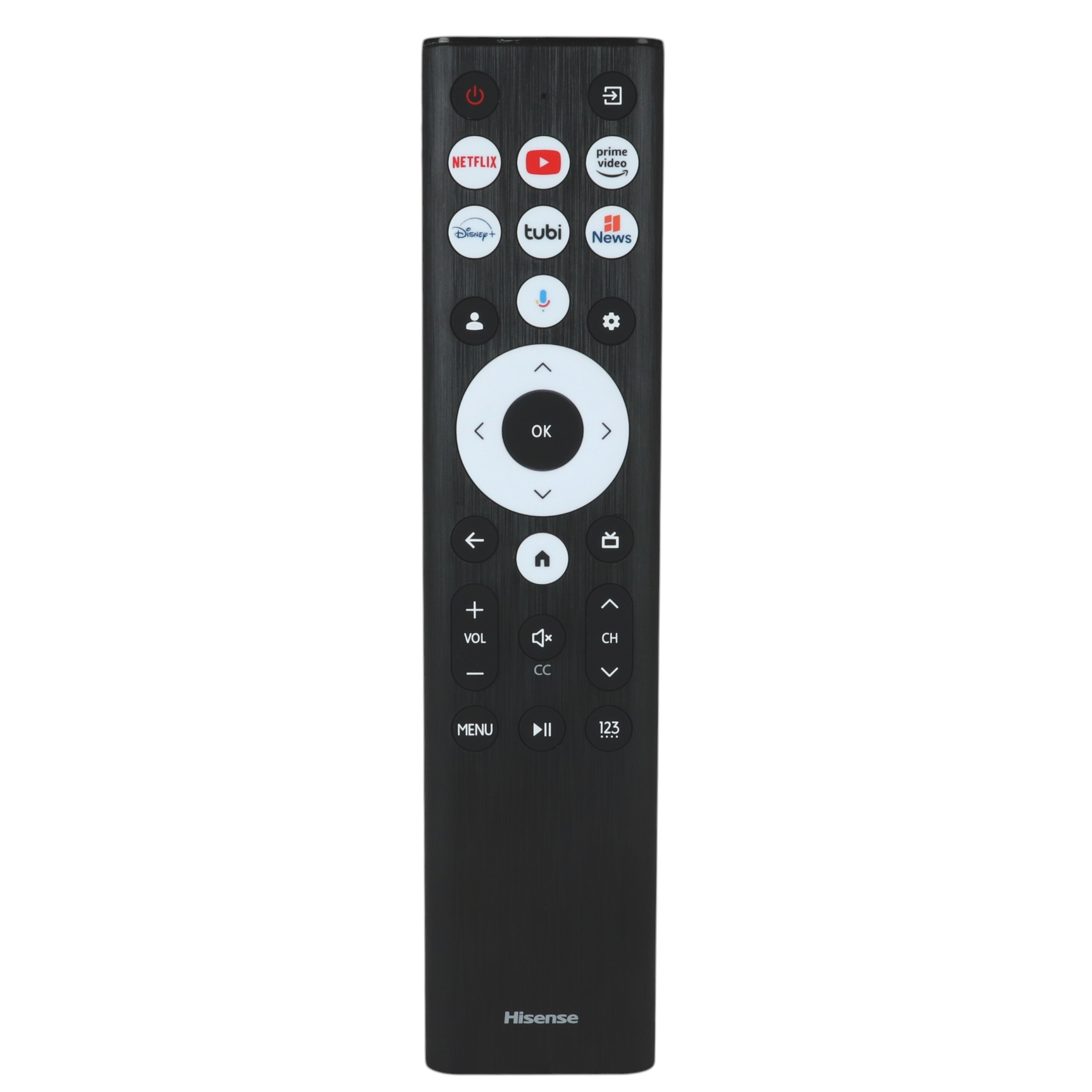
Fig. 1 — Front of the ERF6B80HL remote
What this remote does
The ERF6B80HL is a dedicated Hisense Google TV remote. Power, volume, input, navigation, and app shortcut keys work over infrared as soon as fresh batteries are installed. Google Assistant voice search, profile switching, and some smart functions require a one-time Bluetooth pairing with the TV.
Before you start
- Confirm your TV is a Hisense Google TV / Android TV model, not VIDAA, Roku, or Fire TV.
- Have two new alkaline AAA batteries ready (not included).
- Keep the remote within about 10 feet of the TV during pairing.
- The TV must be powered on and finished booting to the home screen.
Installing the batteries
- Turn the remote over. The battery cover is on the lower back of the remote.
- Press firmly on the cover and slide it off in the direction of the molded arrow.
- Insert two AAA batteries. Match the + and − markings inside the compartment. Do not mix old and new batteries, or different brands.
- Slide the cover back on until it clicks.
Tip: Always replace both batteries at the same time with new alkalines. Weak batteries are the most common cause of pairing failure and a voice button that does nothing.
Pairing the remote (Bluetooth / voice)
IR keys (Power, Volume, Input, and app shortcuts) usually work without pairing. Pairing is required for Google Assistant, reliable navigation without line-of-sight, and the Profile key.
Indicator behavior: red flash = pairing / not connected; blue flash three times = pairing successful.
Method A — Automatic pairing (new / unpaired remote)
- Turn the TV on from the set or a working remote and wait until the home screen is up.
- On a remote that has no stored pairing, press any key except Power or the microphone key.
- The remote broadcasts for about 3 seconds. The indicator flashes red (1/2 second on, 1/2 second off).
- On success the indicator flashes blue three times. If it does not, use Method B.
Method B — Manual pairing (hold Menu)
This is the factory method documented for ERF6B80HL.
- TV on, home screen loaded, remote pointed at the TV.
- Press and hold MENU for 3 seconds. The remote sends the IR “Bluetooth pairing” command.
- The indicator flashes red while pairing. Success = blue flash three times.
Method C — Pair from the TV menu (if A and B fail)
- On the TV go to Settings → Remotes & accessories → Pair remote or accessory (wording varies slightly by firmware).
- When the TV says it is searching, press and hold Back + Home together for about 5 seconds until the remote LED flashes.
- Select the remote on screen and press OK. You should see a paired confirmation.
Re-pairing / unpairing
Starting a new pairing on this remote automatically unpairs the previous connection. On a successful unpair, blue and red indicators flash three times. If the remote was previously paired to a different TV, run Method B or C on the TV you want to use now.
Button functions
Layout matches Fig. 1. App shortcut keys launch that app only if it is installed and the TV is online.
| Key | Function |
|---|---|
| Power | Turns the TV on or off. |
| Input (screen icon) | Opens the input / source list (HDMI, live TV, apps). |
| Netflix / YouTube / Prime Video | One-touch launch of the labeled streaming app. |
| Disney+ / Tubi / News | One-touch launch of the labeled app. News opens Hisense/Google News where supported. |
| Microphone (Google Assistant) | Press and hold, speak, then release. Requires Bluetooth pairing + internet + a Google account on the TV. |
| Profile (person icon) | Switch Google TV user profiles. Pairing required. |
| Settings (gear) | Opens TV Settings. |
| D-pad + OK | Navigate menus. OK confirms a selection. |
| Back | Returns to the previous screen. |
| Home | Returns to the Google TV home screen. |
| Apps (grid / apps icon) | Opens the full apps list. |
| VOL + / VOL − | Raises or lowers TV volume. |
| Mute / CC | Short press mutes or unmutes. On many Hisense Google TVs this key also relates to closed captions depending on screen context. |
| CH + / CH − | Changes live TV channels when a tuner or live-TV app is active. |
| MENU | Opens the on-screen menu / options for the current screen. Hold 3 seconds to start manual Bluetooth pairing. |
| Play / Pause | Play or pause the current title. |
| 123 | Opens the on-screen number pad for channel entry or search. |
Using Google Assistant
- Pair the remote first (Methods A–C above). Voice will not work on IR-only.
- Sign in to a Google account on the TV if you have not already.
- Press and hold the microphone key. Wait for the listening indicator on screen.
- Speak clearly toward the top of the remote, then release.
Useful commands: “Open Netflix”, “Search for [title]”, “Turn on captions”, “Set volume to 15”, “What’s on tonight?”, “Go home”.
Note: Voice needs a working Wi-Fi connection on the TV. Covering the mic holes or holding the remote too far from your mouth will cause missed commands.
Indicator light
| Behavior | Meaning |
|---|---|
| Red flash on key press | Unpaired, or paired but not currently connected. |
| Blue flash on key press | Paired and connected. |
| Red flash about 1× per second | Pairing in progress. |
| Blue flash three times | Pairing succeeded. |
| Blue + red flash three times | Unpair succeeded (happens when you re-pair). |
Troubleshooting
| Problem | What to try |
|---|---|
| Nothing works | Install two new AAA alkalines with correct polarity. Confirm the cover is fully seated. Power-cycle the TV (unplug 10 seconds). |
| Power / volume work, voice does not | IR is working; Bluetooth is not. Run Method B (hold MENU 3 seconds) or Method C. Confirm the TV is on Wi-Fi and a Google account is signed in. |
| Will not pair | Replace batteries. Unplug the TV 10 seconds. Wait for the home screen. Hold MENU 3 seconds. If that fails, Settings → Remotes & accessories, then Back + Home for 5 seconds. Stay within 6–10 feet and point at the TV. |
| Paired to the wrong TV / second TV in the house | Start pairing again on the TV you want. This remote unpairs the old connection automatically when a new pair succeeds. |
| App shortcut keys do nothing | TV must be online. Open the Apps list and confirm Netflix / YouTube / Prime Video / Disney+ / Tubi are installed and updated. |
| Range is short or intermittent | For IR-only use, keep line of sight to the TV IR window. After a good Bluetooth pair, navigation should work without aiming. Fresh batteries restore range. |
| Remote worked, then stopped | Replace both batteries first. Then re-pair (Method B or C). Restart the TV. |
| Some keys work, others do not | Confirm this is an ERF6B80HL / RF585A-T1-03 on a compatible Google TV model. A VIDAA, Roku, or Fire TV set will only respond to a few IR keys, or none of the smart keys. |
Compatibility
Built for Hisense Google TV / Android TV sets. Works with Android TV platforms only — not Roku TV and not Fire TV. Match your TV model before assuming it will pair.
Commonly supplied / listed models: 43A7K, 43A65K, 43A78K, 43A7N, 43A75N, 50A7K, 50A65K, 50A78K, 50A75N, 55A7K, 55A65K, 55A78K, 55A75N, 65A7K, 65A65K, 65A78K, 65A75N, 75A7K, 75A65K, 75A78K, 75A7N, 75A75N, 55U8QG, 55U88QG, 65U8QG, 65U88QG, 75U8QG, 75U88QG, 85U8QG, 85U88QG, 100U8QG, 100U88QG, 65U6N, 75U6N.
Also reported on related A7 / U6 / U7 / U8 Google TV sets such as 43A68N and other U8N / U6N sizes. If your set is VIDAA (typical on many U6H / U7H / U8H non-Google models), this is the wrong remote family.
Specifications
| Item | Detail |
|---|---|
| Model / part | ERF6B80HL • also RF585A-T1-03 |
| Software version (OEM) | ERF6B80HL_V1.03 |
| Connectivity | Infrared + Bluetooth (2.402–2.480 GHz) |
| Voice | Google Assistant (after Bluetooth pair) |
| Keys | 27 • rubber + metal-dome • no backlight |
| Power | 3 V • 2 × AAA (not included) • working current < 40 mA |
| Size / weight | 195.5 × 44.9 × 14.8 mm • max 68 g without batteries |
| Operating temperature | −10 °C to +45 °C (14 °F to 113 °F) |
| Certification | FCC, IC • portable RF-exposure compliant |
Important notes
- This remote is pre-mapped for compatible Hisense Google TVs. There is no code-entry programming.
- Do not use factory combination keys (OK + Home + volume/channel, OK + Home + Netflix, OK + Power + VOL−). Those put the remote into production test / aging modes and are not for end users.
- Changes or modifications not approved by the responsible party can void the user’s authority to operate the equipment (FCC). The device must accept any interference received.
- Keep batteries out of reach of children. Remove batteries if the remote will sit unused for months. Do not expose the remote to water, direct sun, or heat sources.
Source pairing and RF data follow the OEM ERF6B80HL manual. Button layout follows the ERF6B80HL / RF585A-T1-03 unit sold for A7 and U8 Google TV series.
Need another model? Search the Anderic Help Center for the exact part number printed inside the battery door of your original remote before ordering a replacement.